
How to Design High-Converting Blog Preview Cards
Learn the exact image sizes for Facebook and LinkedIn preview cards and how to keep files lean and fast.
How to Design High-Converting Blog Preview Cards
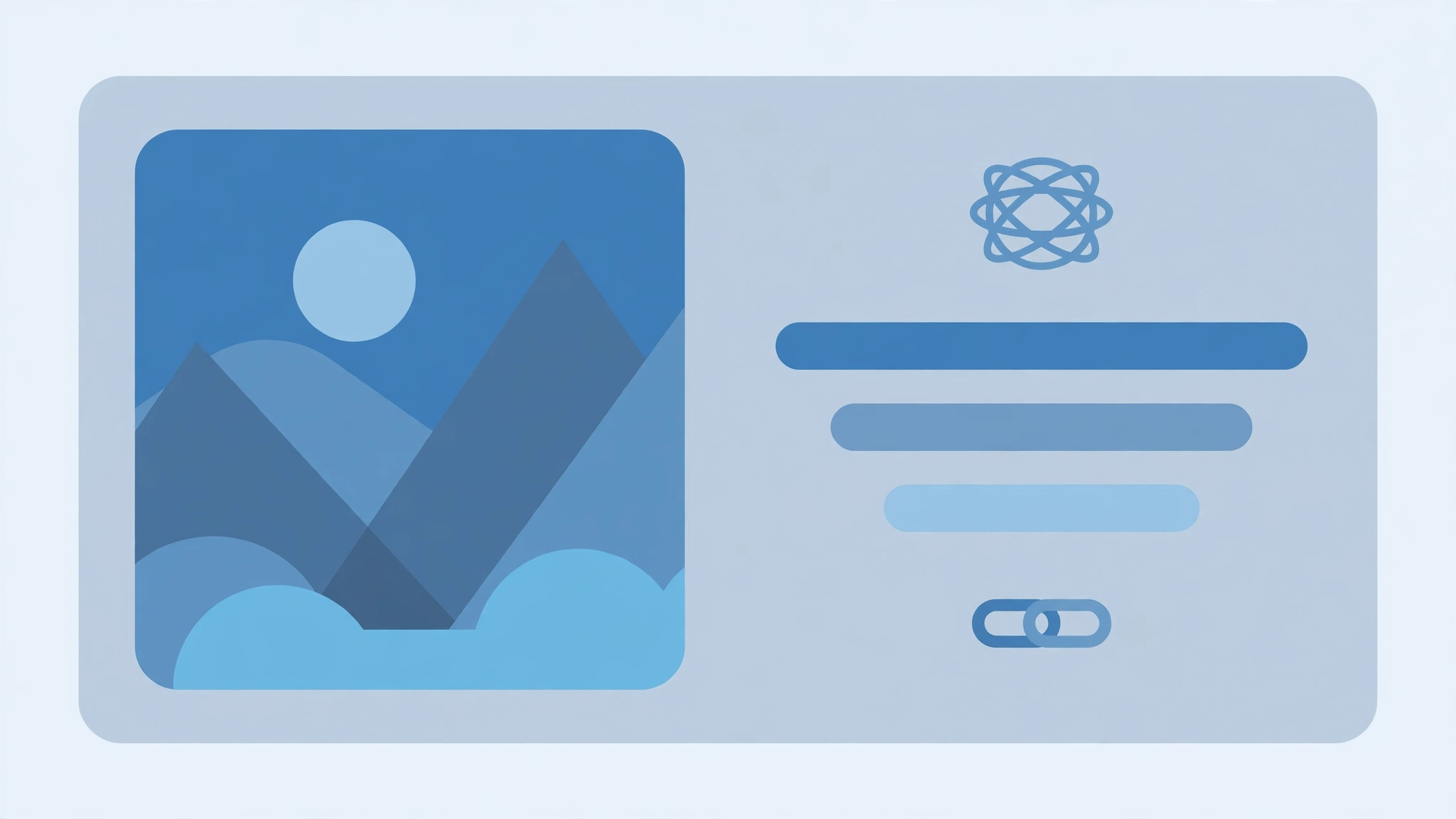
When readers share a link on social platforms, the preview card is what decides whether they stop scrolling. A well designed blog preview card shows a clear title, a readable subtitle, and a single focused image. A sloppy one gets skipped.
TL;DR Design blog preview cards at 1200x630 pixels for Facebook and 1200x627 pixels for LinkedIn, keep the file small so pages and previews load fast, and use an Open Graph generator to set the tags.
Why the image matters more than the title
The title and excerpt come from your page text. The image is the only element you build by hand, so it carries the visual weight. In a feed, the image takes up most of the preview area and the eye lands on it before the text. If the image is blurry, cluttered, or the wrong size, the whole link looks unprofessional even when the article is strong.
The design decision here is simple. Use one strong image that matches the article’s main idea, place text large enough to read at thumbnail size, and keep colors high contrast.
Pick the right canvas size
Social platforms do not stretch images to fit. They render previews at a fixed pixel size, and an image that is much smaller falls back to a small-thumbnail layout. This is where most previews go wrong.
- Facebook renders link preview images at 1200x630 pixels. Images much smaller than this fall back to a small-thumbnail layout instead of the large preview.
- LinkedIn renders link preview images at about 1200x627 pixels. Custom images uploaded directly to posts display best near this size.
Design your canvas at 1200x630 and it will satisfy both. The 3-pixel height difference is invisible in practice, so use 1200x630 as your master size and treat 1200x627 as the LinkedIn target.
Keep the file lean
File size affects two things at once. Oversized images slow down page loads and link previews. This matters because slow pages cost engagement, and a preview that takes seconds to render looks broken.
Keep Open Graph and social preview image files reasonably small so pages load fast. Export JPEGs at a moderate quality setting, and avoid PNGs for photos unless transparency is required. Remove hidden layers and metadata before export. Most preview images land between 100 and 300 kilobytes, so check your file size in the image editor before uploading.
Lay out the text for readability
Preview cards shrink to roughly half the screen width on mobile. Text that looks fine in your design tool may become unreadable when scaled down.
- Set the headline to at least 40 points at 1200 pixels wide, which scales to a readable size on mobile.
- Use a subtitle line for context, not a paragraph. Two lines max.
- Keep a dark text color on a light background, or a light color on a dark background. Never place text over a busy photo.
- Leave 60 to 80 pixels of padding around the edges so text does not touch the frame.
Design the image itself
The image should do one job: signal the article’s topic in a glance.
- Use one subject, not a collage. A busy composition reads as noise at small sizes.
- Keep the subject within the center 80% of the canvas. Social apps crop the edges of some previews.
- Match the image to the headline. A mismatch between image and text raises the bounce rate.
- Use brand colors sparingly. One accent color is enough to signal ownership without shouting.
Set the Open Graph tags
Designing the image is only half the work. You must tell each platform which image to use. Add these tags to the <head> of your page:
<meta property="og:title" content="Your headline"><meta property="og:description" content="A one or two sentence summary"><meta property="og:image" content="https://example.com/path/to/preview.jpg"><meta property="og:image:width" content="1200"><meta property="og:image:height" content="630">
The width and height tags prevent the crawler from guessing and producing a bad crop. Omitting them is a common cause of distorted previews.
Test before you publish
A preview looks different in each tool, so test on the platforms you actually use.
- Paste the URL into Facebook’s Sharing Debugger and click Debug.
- Paste the URL into LinkedIn’s Post Inspector and click Inspect.
- Check the mobile preview in each tool, not just the desktop view.
- Verify the text is legible and the image is not cropped.
Both tools cache results, so run a scrape after you change the image. If the old preview persists, force a re-scan.
Compare your design options
| Option | Size control | Tag handling | Speed | Best for |
|---|---|---|---|---|
| Build in an image editor | Full | Manual tags | Depends on export | Custom brand cards |
| Template library | Fixed presets | Manual tags | Depends on export | Fast batch creation |
| Open Graph generator | Auto | Auto tags | Depends on export | No-tag setups |
An Open Graph generator removes the manual tagging step, but a custom image editor gives you full control over composition and brand. Most teams use a generator for speed and an editor for flagship posts.
Common mistakes that kill clicks
- Using a logo-only image. Readers need to know what the article is about, not just who wrote it.
- Text too small to read at thumbnail size.
- File larger than 500 kilobytes.
- Forgetting the width and height tags.
- Testing only in one platform’s preview tool.
- Reusing the same image across unrelated posts.
FAQ
What size should my blog preview image be? Use 1200x630 pixels for Facebook and about 1200x627 pixels for LinkedIn.
Why does my Facebook preview look like a small thumbnail? The image is smaller than 1200x630 pixels, so Facebook falls back to a small-thumbnail layout.
How do I make the preview image load faster? Keep the Open Graph and social preview image file reasonably small, and export with moderate JPEG quality.
Do I need separate images for Facebook and LinkedIn? No. Design at 1200x630 and it works for both platforms.
Why does my preview still show the old image after I changed it? Facebook and LinkedIn cache previews. Run the debugger or inspector again to force a re-scan.
What Open Graph tags do I need? You need og:title, og:description, og:image, and the og:image:width and og:image:height tags.
Get started in two minutes
Designing a card from scratch is fast once you have a template and the right tags. Try the OG Image Generator, which is free and needs no signup. Set your canvas to 1200x630, paste your headline, and export.
Related articles
How to Turn Raw Customer Reviews into Visual Proof
Turn customer reviews into accurate visual proof cards with practical steps for choosing quotes, adding attribution, designing, and checking each image.
How to Turn Customer Praise on Twitter into Marketing Assets
Turn customer praise on Twitter into marketing assets with permission, accurate attribution, and the right format for each channel.

How to Issue Shareable Completion Badges for Bootcamps
Learn how to issue shareable completion badges for bootcamps: design, sRGB export, alt text, and verification links.