
Facebook Link Preview Image Not Showing? Size and Cache Fixes
Fix Facebook link preview images not showing. Learn required dimensions, Open Graph tag setups, and how to clear the Facebook Sharing Debugger cache.
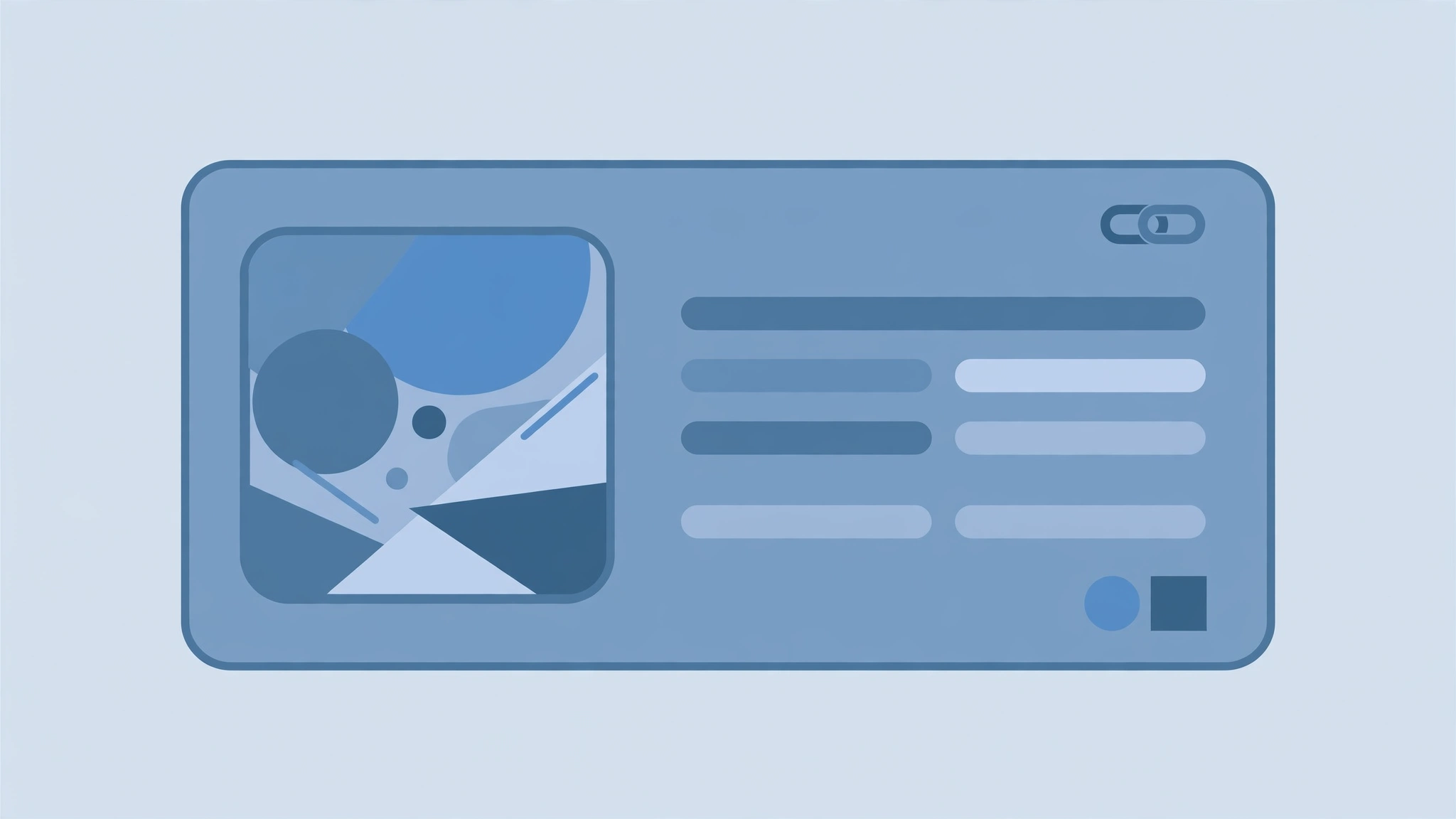
You publish a new article or landing page, paste the URL into a Facebook post, and wait for a rich link card to appear. Instead, you get a blank gray box, a distorted logo from your site footer, or a tiny square thumbnail shoved into a corner. Dealing with your facebook link preview image not showing is frustrating, particularly when you need that shared link to drive traffic and represent your brand cleanly.
When link previews break, the root cause almost always traces back to two factors: incorrect Open Graph meta tags or outdated platform caches. Facebook relies on automated crawlers to fetch, parse, and store metadata from your webpage headers. If the scraper encounters missing tags, dimension errors, or access restrictions, the preview fails.
Understanding how Facebook reads your page and stores assets will help you resolve display issues permanently. Here is how to fix preview errors, dial in your image sizing, and force Facebook to display the right visual assets.
Why Is Your Facebook Link Preview Image Not Showing?
When you paste a link into Facebook, a background crawler known as facebookexternalhit visits your URL. The crawler reads the <head> section of your HTML, looking specifically for Open Graph (og:) protocol tags. These tags tell the platform which headline, description, and image file to assemble into the link card.
If you run into issues, one of several common breakdowns is usually taking place:
- Stale platform cache: Facebook saves preview data the first time anyone shares a specific URL. If you update the featured graphic on your site after that initial scrape, Facebook continues serving the old, cached data from its internal servers.
- Incorrect image dimensions: When an asset does not match the platform’s required display framework, the link card layout shifts automatically or drops the graphic entirely.
- Missing or malformed Open Graph tags: If your CMS fails to output an
og:imagetag, the crawler scans the page for any available graphic, often grabbing irrelevant icons or navigation elements. - Server-side access blocks: Security layers, content delivery networks (CDNs), or restrictive
robots.txtfiles can inadvertently block Facebook’s crawler from accessing your image file. - Asynchronous metadata rendering: If your website relies entirely on client-side JavaScript to inject meta tags, the Facebook crawler may read the HTML payload before the tags populate in the document head.
Open Graph Image Dimensions and Aspect Ratios
Image sizing is one of the most common reasons Facebook fails to generate a full-width preview card. Facebook link posts render preview images at 1200x630 pixels. Images much smaller than this may fall back to a small-thumbnail layout instead of the large preview.
+-------------------------------------------------------+
|                                                       |
|                                                       |
|                     1200 x 630 px                     |
|                 (Aspect Ratio 1.91:1)                 |
|                                                       |
|                                                       |
+-------------------------------------------------------+
The recommended og:image size is 1200x630 pixels (aspect ratio 1.91:1). Social platforms crop and scale link preview images to roughly this ratio, so images far from it may be cropped awkwardly. If you upload a square graphic or a tall portrait photo, Facebook’s feed layout must compromise. The system typically crops the top and bottom aggressively or reduces the preview to an unobtrusive thumbnail alongside your title text.
Consistency across platforms also matters when designing your assets. For example, LinkedIn renders link preview images at about 1200x627 pixels. Custom images uploaded directly to posts display best near this size. Because these platform targets align closely with the standard 1.91:1 ratio, standardizing your primary link preview templates at 1200x630 pixels provides balanced presentation across major social networks without unexpected cropping.
How to Clear Facebook’s Cache with the Sharing Debugger
If you updated an image on your website but Facebook continues showing an old asset or an empty box, the platform’s edge cache is serving stale data. You can clear this manually using Facebook’s official Sharing Debugger tool.
Follow these steps to refresh the cache:
- Open the tool: Visit the Facebook Sharing Debugger in your browser.
- Submit your URL: Paste the exact URL of the post or page you want to fix into the input field and click Debug.
- Inspect the existing cache: Look at the Time Scraped field and examine the rendered preview card. The tool will display any warnings, such as missing tags or accessibility errors.
- Trigger a re-scrape: Click the Scrape Again button located near the top of the report. This action forces Facebook’s crawler to bypass its stored cache, visit your server directly, and read the latest markup.
- Repeat if necessary: If the image does not update on the first click, wait a few moments and click Scrape Again a second time. The initial request often triggers the fetch, while the second request compiles the new visual asset into the preview card.
[ Enter Page URL ] --> Click [ Debug ] --> Click [ Scrape Again ]Code-Level Fixes for Open Graph Meta Tags
If the Sharing Debugger reports that no image can be found, your webpage source code is likely missing key properties. Place your Open Graph tags directly within the <head> and </head> tags of your HTML document.
Here is the standard markup required for Facebook:
<meta property="og:type" content="article" />
<meta property="og:url" content="https://example.com/blog/sample-post" />
<meta property="og:title" content="Your Complete Guide to Link Previews" />
<meta property="og:description" content="Learn how to configure Open Graph tags and fix preview issues." />
<meta property="og:image" content="https://example.com/images/feature-cover.png" />
<meta property="og:image:secure_url" content="https://example.com/images/feature-cover.png" />
<meta property="og:image:width" content="1200" />
<meta property="og:image:height" content="630" />
<meta property="og:image:type" content="image/png" />
Essential Tag Requirements
- Use absolute URLs: The
og:imagevalue must always be a complete URL including the protocol and domain name (https://example.com/image.png). Relative file paths like/assets/image.pngwill fail because external crawlers cannot resolve local paths. - Include explicit dimensions: Adding
og:image:widthandog:image:heighttags is a recommended best practice. When Facebook crawls a link for the very first time, explicit dimension tags tell the platform the image size immediately. Without these tags, Facebook may skip rendering the large card on the initial share while it downloads and evaluates the image asynchronously. - Match secure protocols: If your website runs on HTTPS, make sure your image link uses
https://as well, or define theog:image:secure_urltag explicitly to avoid mixed-content rejections.
Troubleshooting Checklist: What to Check When Previews Still Fail
When you have updated your tags and cleared the cache, but the image still fails to load, use this technical checklist to isolate the problem:
- Test the raw image link: Copy the URL defined in your
og:imagetag and open it in a private browser window. If the image returns a 404 Not Found error, a redirect loop, or an access denied prompt, fix the asset location on your server first. - Review your robots.txt configuration: Ensure your server allows access to social web crawlers. Your
robots.txtfile must not disallow user agents likefacebookexternalhitor block access to the folder hosting your media uploads. - Check firewall and CDN settings: Web application firewalls (WAFs) like Cloudflare or AWS WAF sometimes flag Facebook’s automated requests as suspicious traffic. Check your firewall event logs to see if requests from Facebook’s IP ranges are encountering HTTP 403 Forbidden challenges.
- Inspect canonical declarations: If your page contains an
og:urltag or a<link rel="canonical">tag pointing to a different address, Facebook follows that reference and scrapes the canonical page instead. Ensure both tags point to the intended URL. - Stick to reliable image formats: Use standard web image formats such as PNG or JPEG. Avoid unusual extensions or experimental image formats that social media crawlers may not decode consistently.
Creating social graphics that match platform guidelines ensures your content looks professional whenever someone shares your work. If you need to produce standardized social cards without firing up complex design software, generate clean, ready-to-use visuals with the OG Image Generator. It is completely free, requires no signup, and exports perfectly scaled graphics designed for social feeds.